
Videosly AI Review: One Prompt to a Finished, Scheduled Video for a One-Time Price? Basic vs All-Access, the VIDEO Coupon and the Fine Print
Videosly AI is an AI video app that turns a one-line prompt, a web page URL or your own script into a finished video with script, visuals, voiceover, music, captions and transitions, then lets you edit it, schedule it on a content calendar and publish it to TikTok, Instagram, YouTube, Facebook and LinkedIn from the same dashboard. It costs $49 (Basic) or $97 (All-Access) one-time, and coupon VIDEO takes 10% off. I rate it 8.1/10. Unlike most one-time AI tools I review, the vendor publishes a 13-minute walkthrough of the real app, so you can see exactly what you're buying, and the fine print is on the page. The catches: "unlimited rendering" means up to 30 renders a day, Basic videos stop at one minute, and a one-time price for a cloud AI service always carries a long-term question mark.
This review contains affiliate links. Full disclosure & disclaimer.
TheStackLens score
Videosly AI Review: Quick Verdict
Most AI video tools stop at the video file. You still have to download it, write the caption, open five apps and post. Videosly AI keeps going: create, edit, schedule and publish all happen in one place. For a one-time $49 or $97, with a commercial licence, no watermarks and a 30-day refund window, that's a strong deal next to the monthly AI video subscriptions. My pick is All-Access with coupon VIDEO ($87.30). Basic is fine for testing, but it caps videos at one minute and 15 renders a day. All-Access gives you 5-minute videos, up to 30 renders a day, 15 social accounts, 400+ voices and the multi-episode series builder, for $43.20 more after the coupon.
✔ What I like
- Prompt, URL or script to a finished video in one flow
- Real app walkthrough published, not just mock-ups
- A proper editor: scenes, motion, transitions, captions, timeline
- Schedule and publish to 5 platforms with a calendar
- One-time price, commercial licence, no watermarks
- Limits like the 30-a-day cap are written on the page
✘ What I don't like
- "Unlimited rendering" really means 30 renders a day
- Basic videos stop at 1 minute
- Generation takes "a couple of minutes" in-app, not 90 seconds
- Voice count is 200+ on one page and 400+ on another
- "Lifetime" means the product's commercial lifespan
- Re-renders count against your daily cap
Videosly AI Coupon Code & Best Deal
VIDEOUse coupon VIDEO at checkout for 10% off either plan. It's printed on the vendor's own sales page. That makes Basic $44.10 and All-Access $87.30, one-time. The sales page says this one-time offer is introductory and may change.Basic
- Prompt, URL and script to video
- Videos up to 1 minute
- 15 renders a day, 5 social accounts
- 200+ voices, captions, editor
- Calendar and auto-posting
All-Access ★ Best value
- Everything in Basic
- Videos up to 5 minutes
- Up to 30 renders a day, faster rendering
- 15 social accounts, multi-account management
- 400+ voices, premium styles, series builder
- MCP automation (ChatGPT, Claude)
Pick All-Access on the pricing section and enter VIDEO at checkout.
What Is Videosly AI?
Making one AI video isn't hard any more. Making one every day is. You write a script in one tool, generate scenes in another, find a voice somewhere else, add captions, export, then upload it to five platforms one by one with five different captions. By the second week, the posting schedule is the first thing to slip.
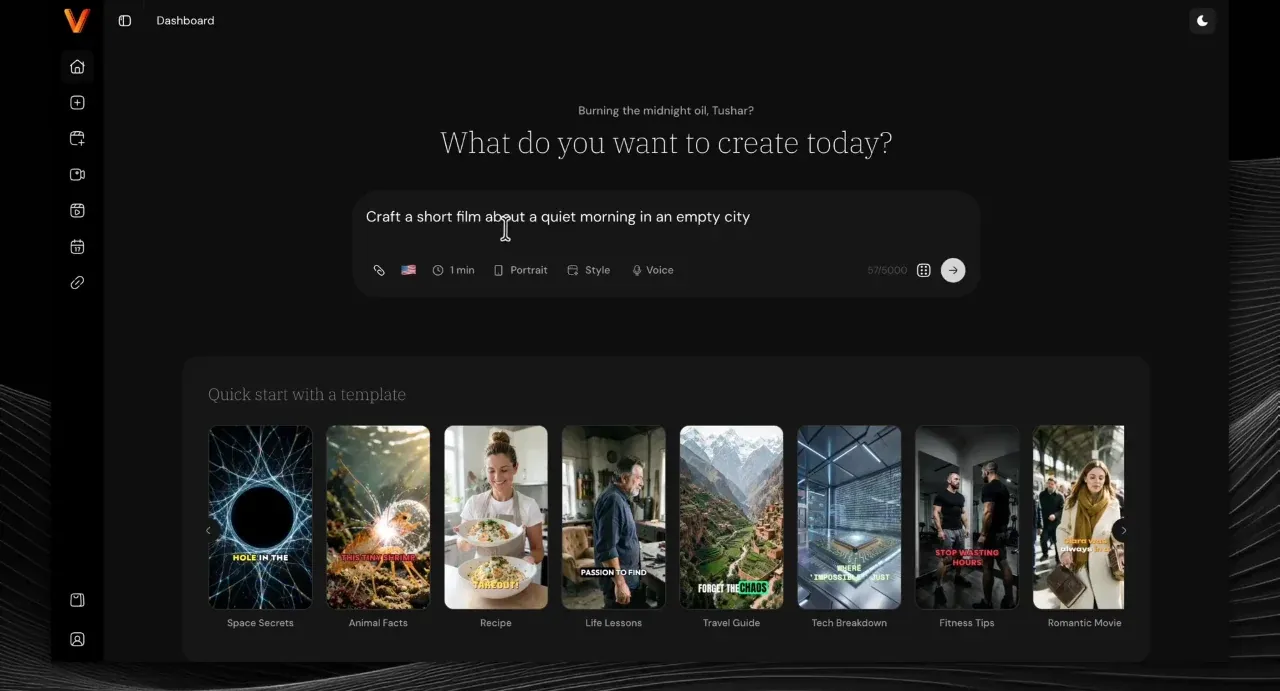
Videosly AI puts that whole chain in one dashboard. You start from a prompt ("a short film about a quiet morning in an empty city"), a URL (a blog post, product page or recipe) or your own script. It writes or matches the script, builds the scenes, adds a voiceover, music, sound effects, transitions and word-by-word captions, and gives you an editor to fix anything you don't like. Then you schedule it on a content calendar and publish to Facebook, Instagram, TikTok, LinkedIn and YouTube without leaving the app.
It's run by Strontium Corp, doing business as Videosly.ai, according to its terms of service. The sales page says it connects with Artistly, CloneVoice and VideoExpress, and Capterra reviewers describe those as apps from the same developer. Videosly AI is sold through PayKickstart as a one-time purchase in two plans: Basic ($49) and All-Access ($97).
How Videosly AI Works: From One Prompt to a Scheduled Post
The vendor published a 13-minute screen-recorded tutorial of the real app, which is rarer than it should be. I went through it frame by frame, and the screenshots below are taken from it (plus three from the vendor's feature clips, labelled). In the walkthrough, one prompt becomes a 53-second, 10-scene vertical short film called "The City of Silent Petals", which is then edited, rendered and scheduled to three accounts.
- Type a prompt. The dashboard opens on one question: "What do you want to create today?" Type your idea and set the four options under the box: Duration, Ratio (portrait, landscape or square), Style and Voice. If you'd rather start from an example, there's a row of quick-start templates underneath: space secrets, animal facts, recipes, life lessons, travel guides, fitness tips and more.
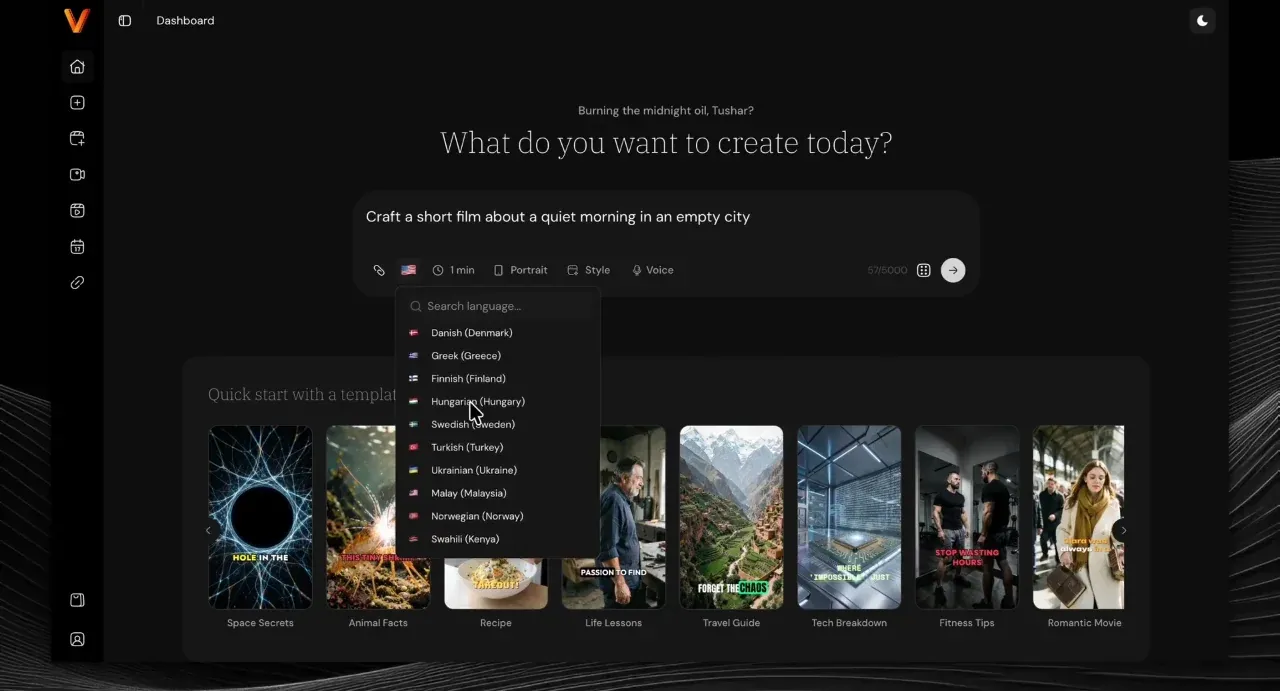
Step 1: the prompt box, with duration, ratio, style and voice options (vendor walkthrough) - Pick a language. The options include a searchable language list (Danish, Greek, Finnish, Hungarian, Swedish, Turkish, Ukrainian, Malay, Norwegian, Swahili and more are visible in the demo), so the script and voice come out in the language you choose.
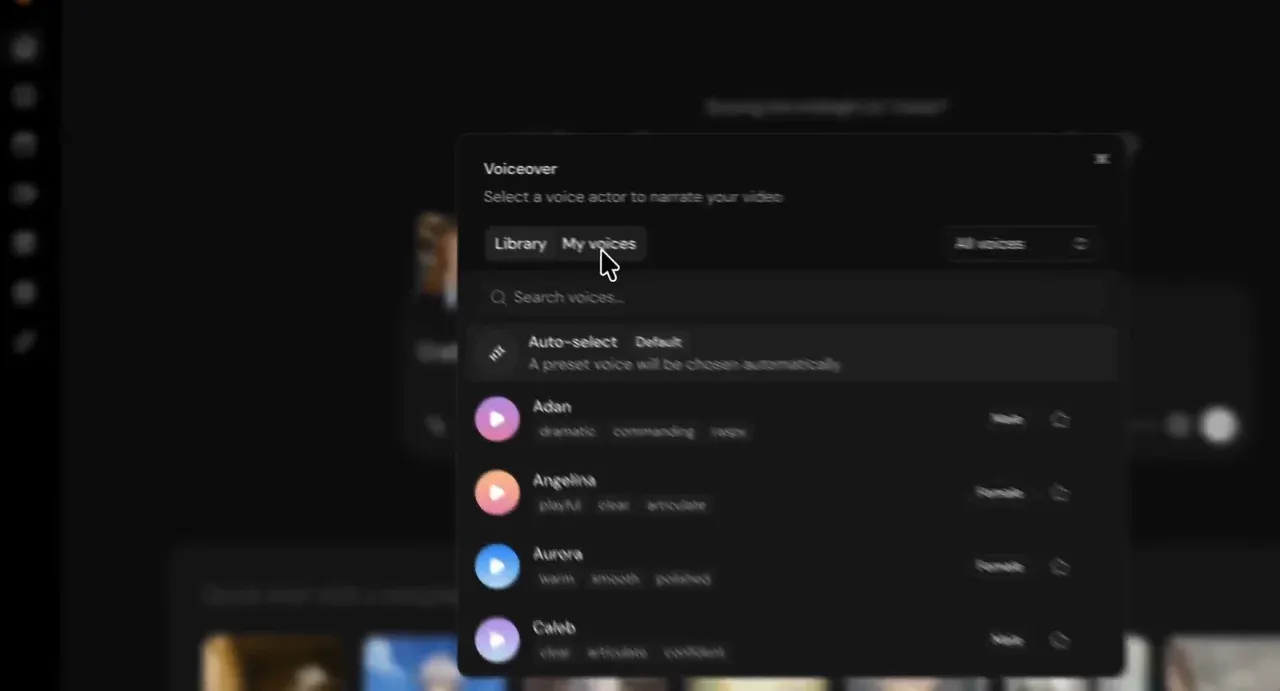
Step 2: choosing the video language (vendor walkthrough) - Choose a voice. The voice panel has the built-in library, a "My voices" tab for your own, and an Auto-select option that picks a voice for you. Each voice is tagged by gender and style: "dramatic, commanding, raspy", "playful, clear, articulate" and so on.
Step 3: the voice picker (vendor walkthrough) - Let it build the scenes. Videosly AI writes the script and generates each scene in turn. The progress screen says "This usually takes a couple of minutes", and you can leave the tab in the background while it works. Note that the sales page headline says 90 seconds.
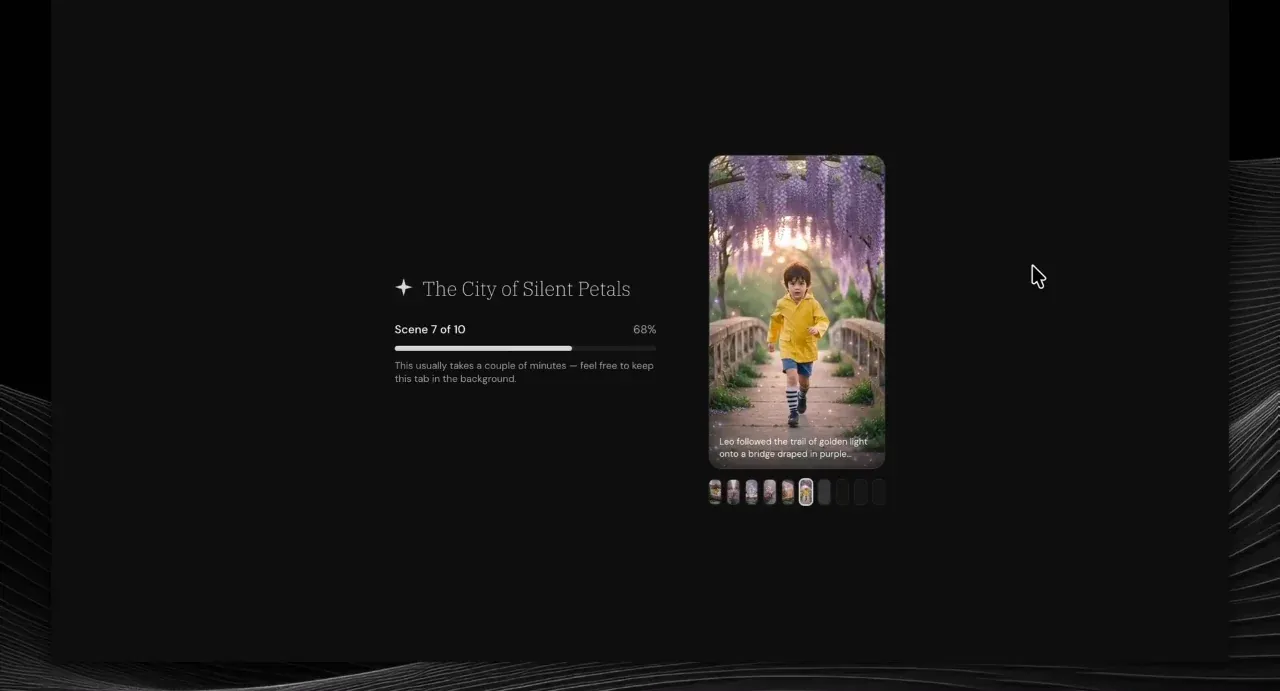
Step 4: scene 7 of 10, "usually takes a couple of minutes" (vendor walkthrough) - Review the script and scenes. The editor shows the script on the left, the video in the middle and every scene as a thumbnail along the bottom. You can switch between landscape, portrait and square at the top, and drag over words in the script to highlight them in the captions.
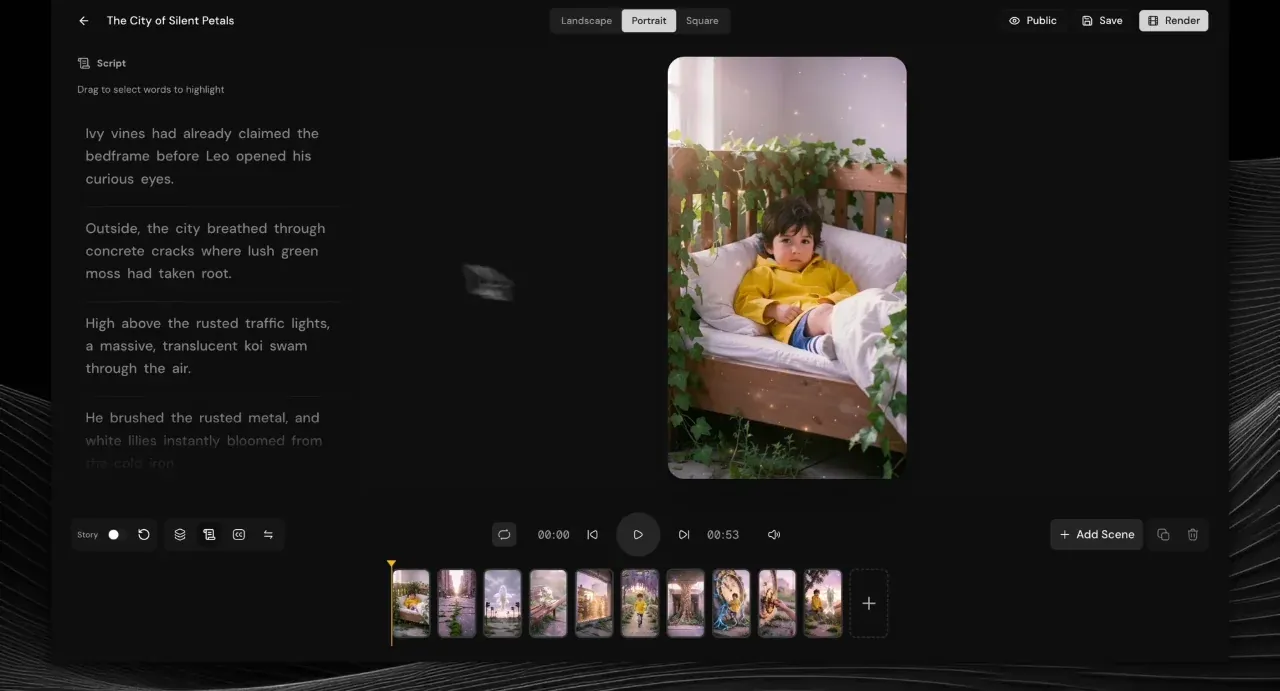
Step 5: script, preview and scenes in one editor (vendor walkthrough) - Add motion to any scene. Each scene has a Scene & Media panel with camera-motion presets: Pan Down, Pulse, Shake, Zoom + Shake, Breathe, Tilt Shift, Glitch Shake, Drift, Heartbeat and more. You can also swap a scene's image or upload your own media.
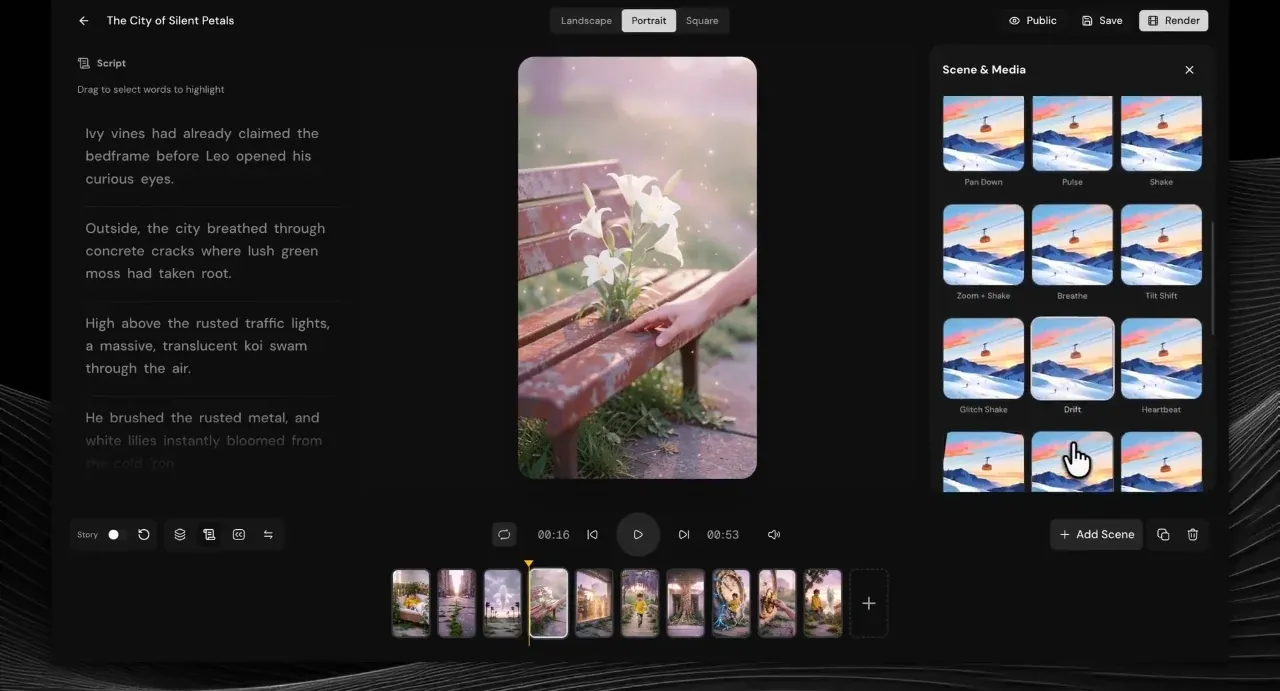
Step 6: motion presets per scene (vendor walkthrough) - Add motion graphics on the timeline. A timeline view shows scenes, music and voice tracks. From here you can drop in motion graphics: a Vox-style callout, location pin, emoji reaction, chapter divider, map path, message bubble or mouse-cursor click.
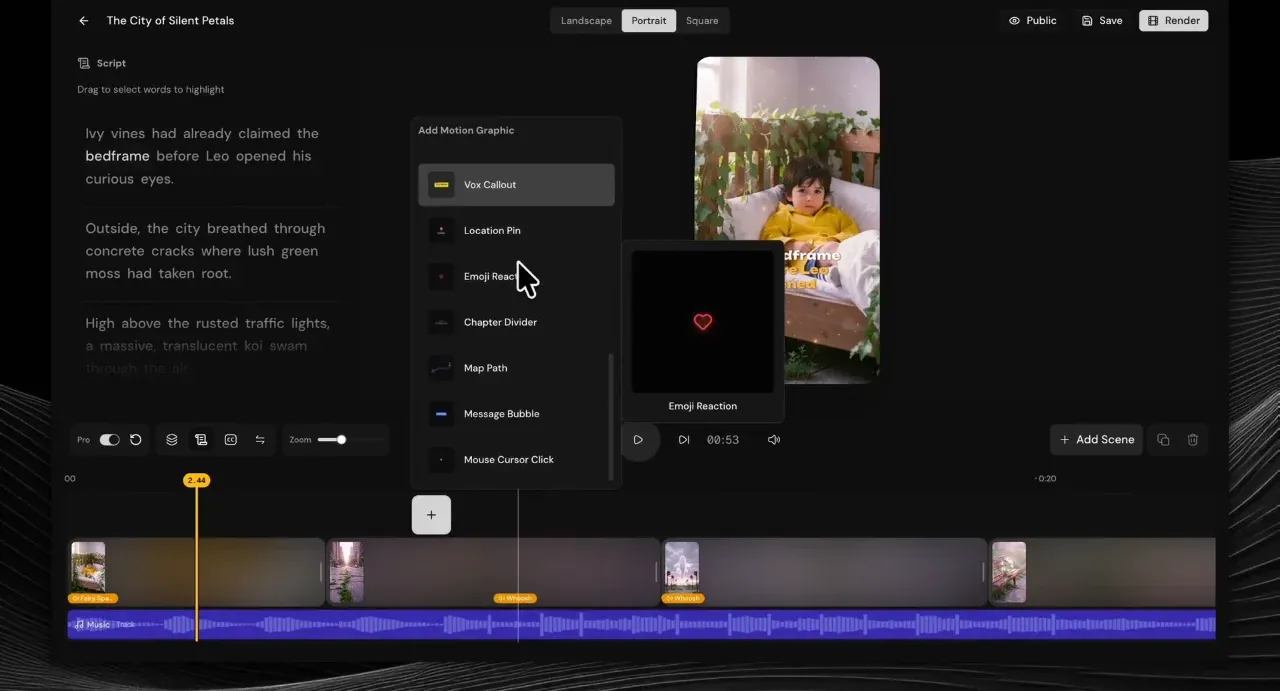
Step 7: motion graphics and the timeline (vendor walkthrough) - Set transitions between scenes. The transition panel offers Cut, Dissolve, Dip to Black, Warp In, Warp Out, Push, Whip, Spin, Cross Blur, Light Leak, Flash and Glitch. The captions stay word-by-word, with highlighted words in a bolder colour ("BEDFRAME" here).
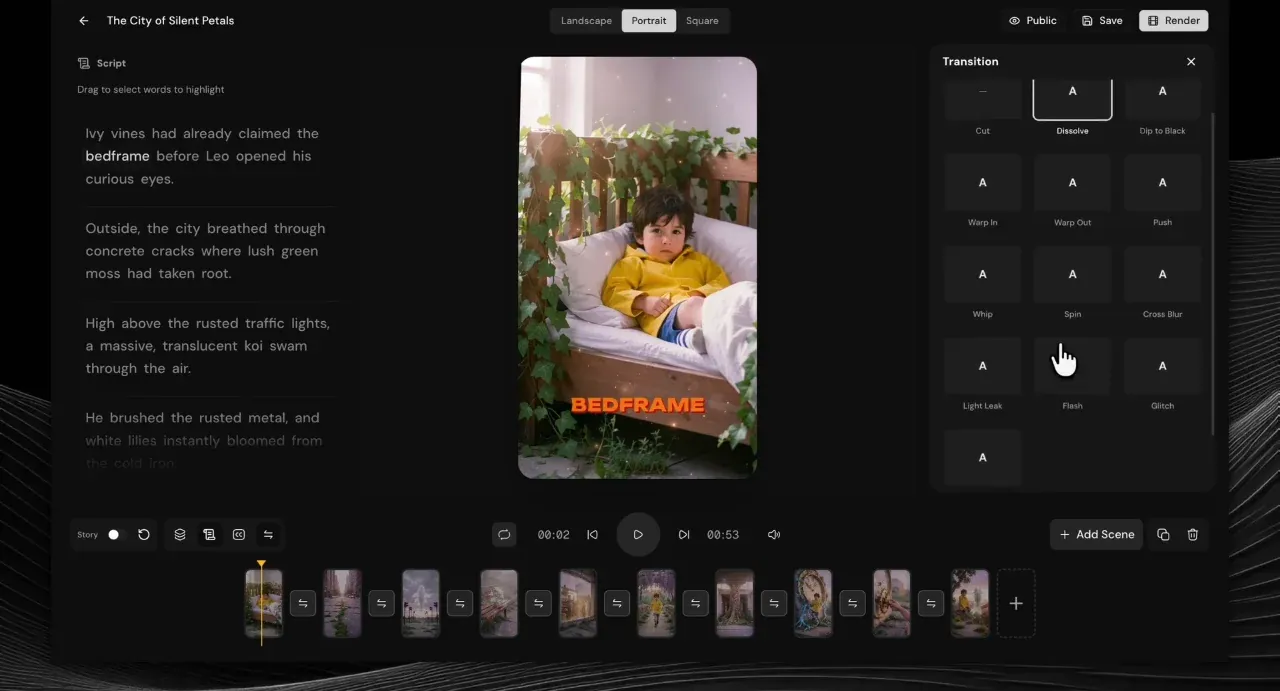
Step 8: transitions and highlighted captions (vendor walkthrough) - Render the final video. Click Render. You can set it to Private or Public first. Each render counts towards your daily cap (15 on Basic, up to 30 on All-Access), so this is the moment to check everything (my Bonus #21 is the checklist).
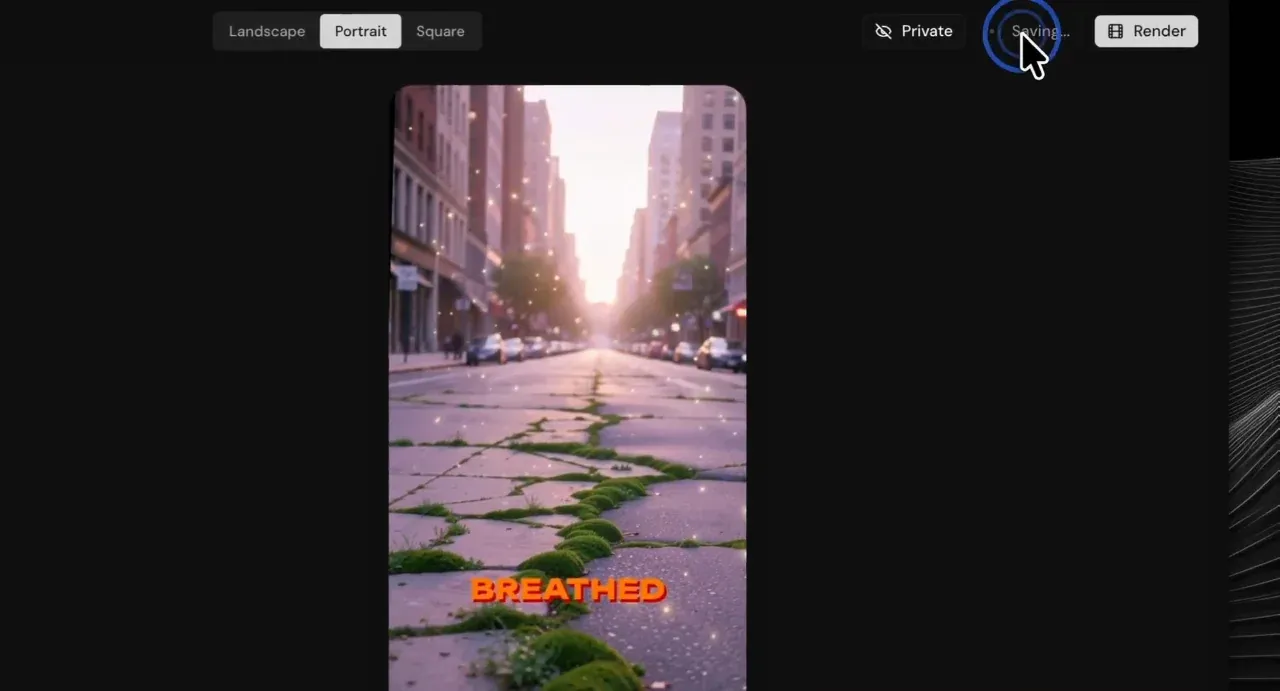
Step 9: rendering, with captions burned in (vendor walkthrough) - Find it in your library. Finished videos land in All Videos with their status. The library in the demo also shows videos in Arabic, Hebrew and Italian, which backs up the multilingual claim.
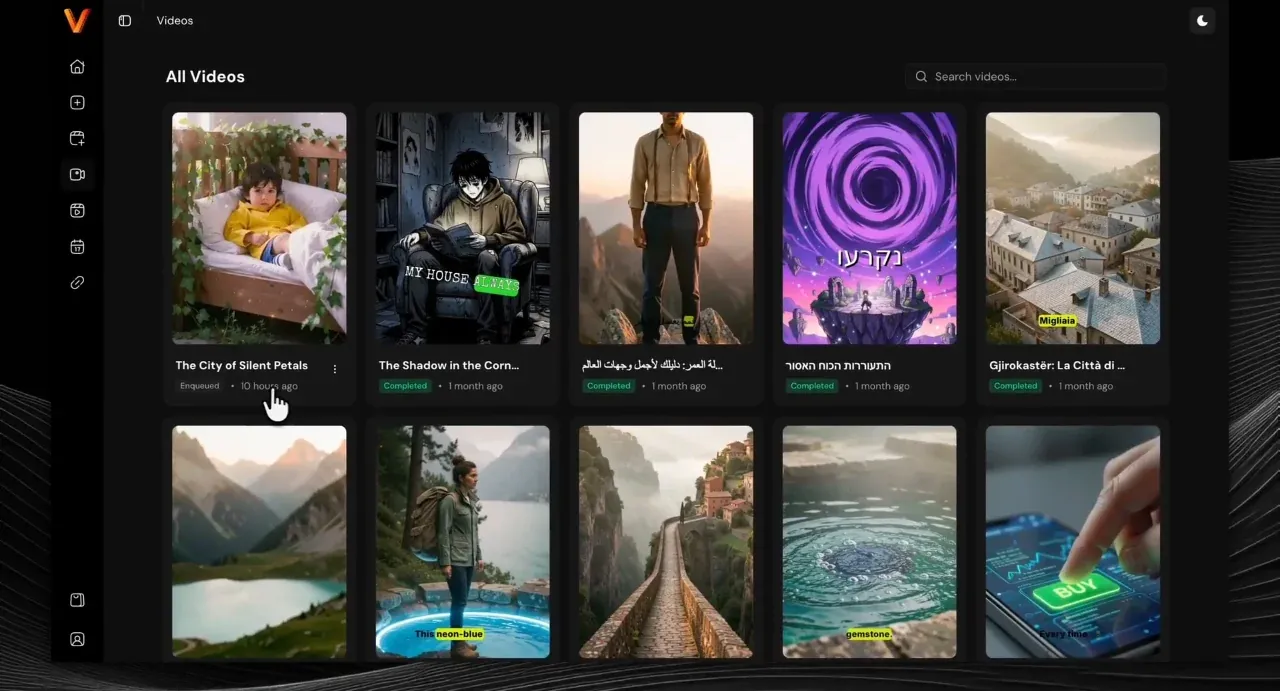
Step 10: the video library (vendor walkthrough) - Create the post and schedule it. The Create Post screen lets you pick which connected accounts to post to, choose Reel, Story or Post for each, set YouTube visibility, and write a title, caption and hashtags. Then publish now or pick a date and time.
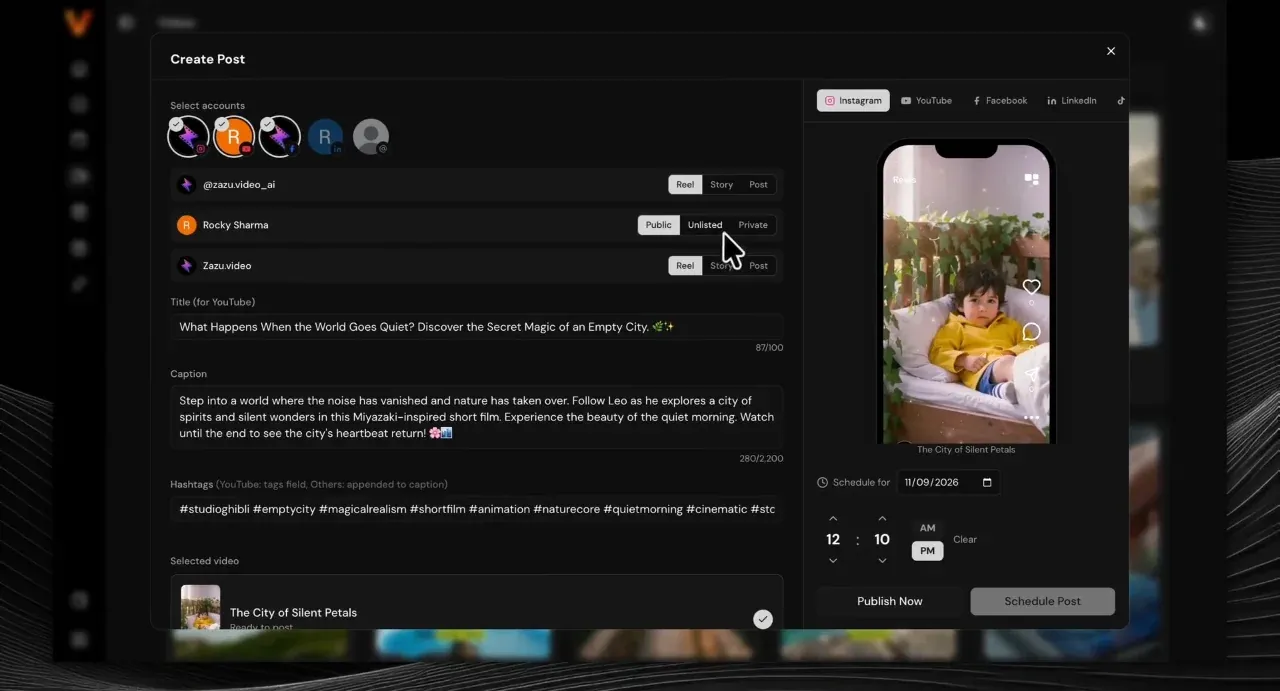
Step 11: one post, several accounts, scheduled (vendor walkthrough) - Track it on the calendar. The content calendar shows every post by day, with Processing, Scheduled and Published lists on the side. In the demo, the video was published to three accounts.
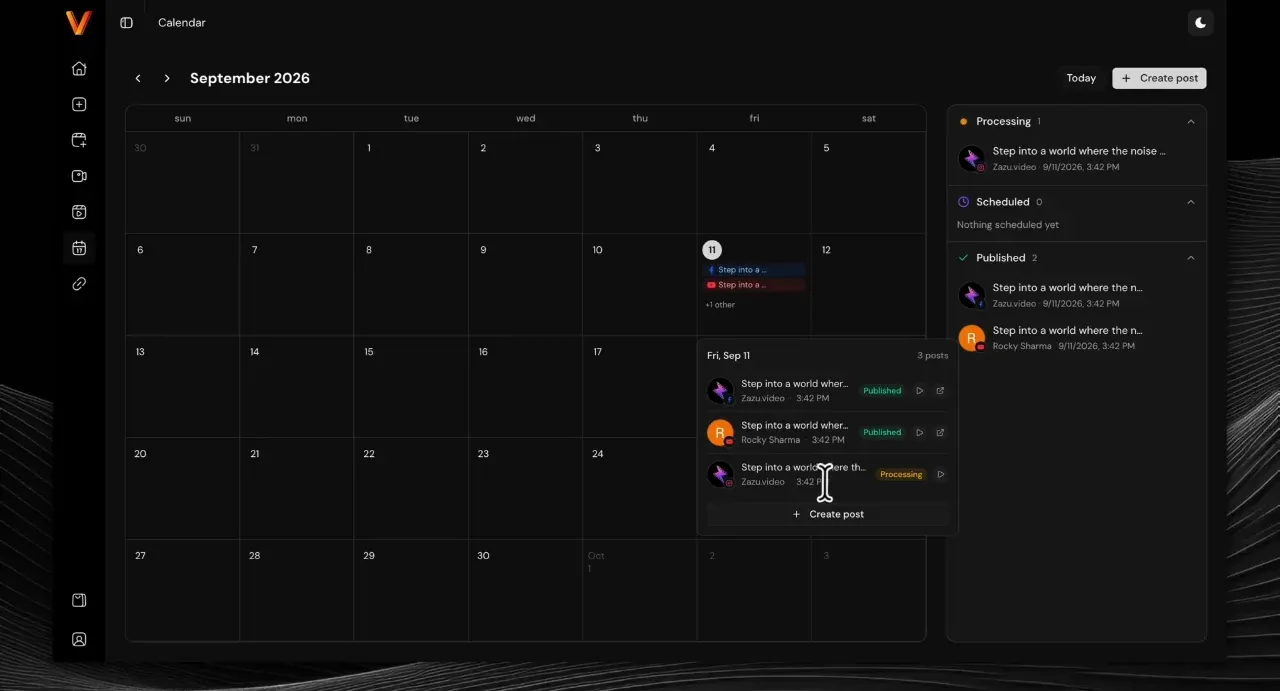
Step 12: the content calendar (vendor walkthrough)
Two other ways in are shown in the vendor's feature clips. URL-to-Video takes a page link instead of a prompt. The Multi-Episode Series Builder (All-Access) plans a numbered series and queues every episode. And the social accounts screen is where you connect each platform once.
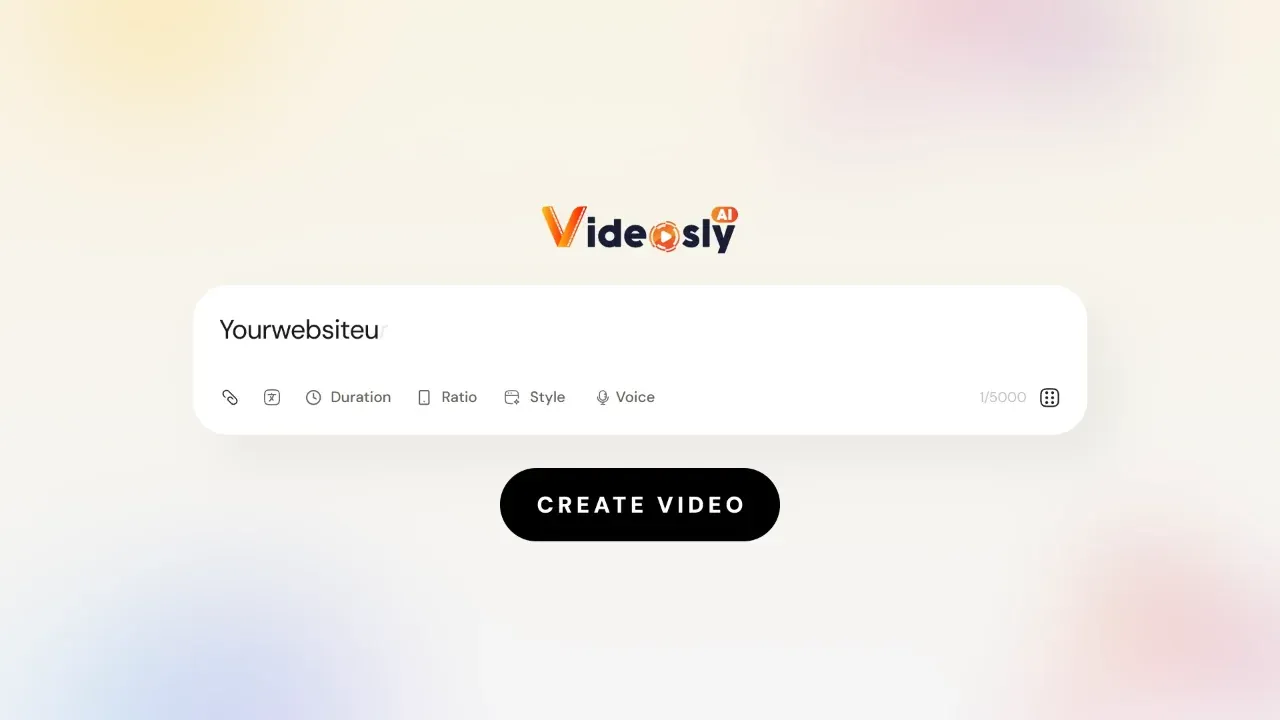

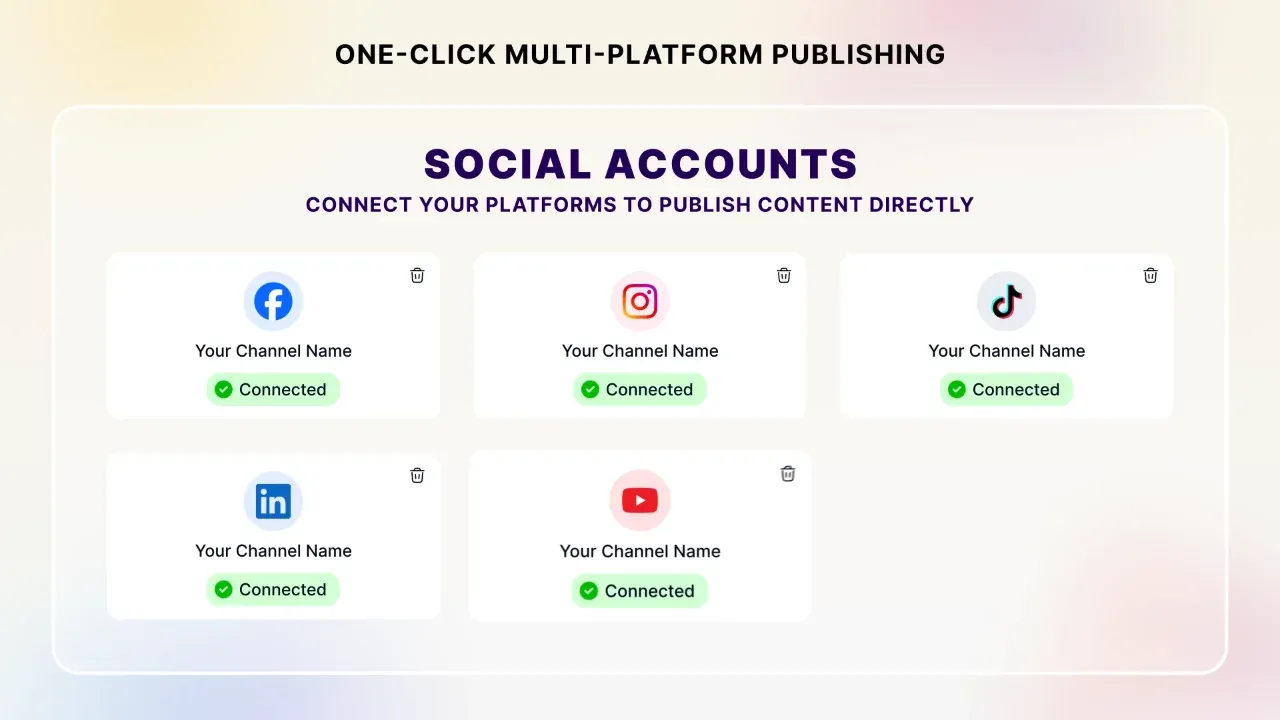
Before Step 1, use my Bonus #4 to write a specific prompt: vague prompts are what waste renders. Before you publish, Bonus #13 gets each platform's caption right and Bonus #15 tells you when to switch on the AI label.
What Stood Out
This is the part a sales page won't give you. Here's what I took from the walkthrough, the sales page, the terms and the partner page, area by area.
| Area | What I found |
|---|---|
| Proof | Better than most. A real 13-minute screen recording of the app, not designed mock-ups. You can see the editor, the timeline, the post screen and the calendar working |
| Workflow | Genuinely end to end. Prompt, edit, render, write the post, schedule and publish all happen in one app. That's the real time-saver, more than the generation itself |
| Editor | Deeper than expected. Per-scene motion presets, motion graphics, 12+ transitions, a timeline, highlighted captions and three aspect ratios |
| Price model | One payment. $49 or $97, minus 10% with VIDEO, versus the monthly plans most AI video generators charge |
| Fine print | On the page. The 30-a-day cap behind "unlimited", the "lifetime" definition and the refund process are all written down, in the footnote and the terms |
| Speed | Slower than the headline. The sales page says 90 seconds; the app's own progress screen says "a couple of minutes" |
| Voices | Two numbers. The affiliate page says 200+ voices; the sales page says 200+ on Basic and 400+ on All-Access. Both are true once you know the plan split |
| Daily cap | The real limit. 15 renders a day on Basic and 30 on All-Access, re-renders included. Plenty for one creator, tight for an agency batching client work |
Videosly AI Features
| Feature | Plan | My take |
|---|---|---|
| Prompt-, URL- and Script-to-Video | Both | Three ways in. URL-to-Video is the most useful for repurposing blogs and product pages. |
| AI Script Writer + storyboard | Both | Hooks, pacing and a call to action, scene by scene. Edit for your own voice and facts. |
| Multiple video styles | Both | Cinematic, animated, artistic and social-ready looks. Premium styles are All-Access. |
| Consistent AI characters | Both | Reuse the same face and outfit across videos: the key to a recognisable series. |
| AI voices + emotional voiceover | Both | 200+ on Basic, 400+ on All-Access. Excitement, suspense, pauses, whispers. You can upload your own voiceover. |
| Animated captions | Both | Word-by-word, with presets or custom fonts, colours and animations. |
| Drag-and-drop timeline editor | Both | Scenes, motion presets, motion graphics, transitions, music and sound effects. |
| Publishing + content calendar | Both | Facebook, Instagram, TikTok, LinkedIn and YouTube. 5 accounts on Basic, 15 on All-Access. |
| 9:16, 16:9 and 1:1, Full HD | Both | No watermarks. Commercial licence included. |
| Videos up to 5 minutes | All-Access | Basic stops at 1 minute. This is what you need for YouTube. |
| Multi-episode series builder | All-Access | Plans episodes, writes and renders them, and queues them for publishing, with approve or reject before anything goes live. |
| Up to 30 renders/day, faster rendering | All-Access | Double Basic's daily cap. |
| MCP automation (ChatGPT, Claude) | All-Access | Drive Videosly AI from an AI assistant. Useful if you already automate content. |
| Artistly, CloneVoice, VideoExpress bridge | Listed on sales page | Only matters if you already own those apps. |
Videosly AI Limits & Fine Print
| Question | Answer |
|---|---|
| Is rendering really unlimited? | No. The footnote says All-Access "Unlimited Rendering" is capped at 30 video renders a day under a fair-use policy. Basic is 15 a day. |
| How long can videos be? | Up to 1 minute on Basic and 5 minutes on All-Access. |
| How many social accounts? | 5 on Basic, 15 on All-Access, across Facebook, Instagram, TikTok, LinkedIn and YouTube. |
| Any monthly fees? | No. Both plans are a one-time payment. The sales page says the one-time offer is introductory and may change for future customers. |
| Is it really "lifetime"? | The terms define lifetime as access "for the commercial lifespan" of the product and plan, not your lifetime. |
| Can I sell the videos? | Yes, commercial rights are included. You're responsible for media you upload and for any real person's face or voice (my Bonus #20 is a rights check). |
| Can I use my own media? | Yes: images, clips, music and voiceovers, kept in your asset library. |
| Refund window? | 30 days. Email support@videosly.ai within 30 calendar days of purchase. The terms say refunds can be refused for fraud or abuse. |
My advice: in your first week, make one video from a prompt, one from a URL and one from your own script, then schedule one real post. My Bonus #1 tracks the 12 claims that matter, with the 30-day window counting down.
Videosly AI Pricing: Basic vs All-Access
There are two plans, both one-time, both sold through PayKickstart. Coupon VIDEO takes 10% off either one.
| Plan | Price | With VIDEO | Key limits |
|---|---|---|---|
| Basic | $49 one-time | $44.10 | 1-minute videos, 15 renders/day, 5 accounts, 200+ voices |
| All-Access | $97 one-time | $87.30 | 5-minute videos, up to 30 renders/day, 15 accounts, 400+ voices, series builder, premium styles, MCP automation, faster rendering |
Here's the maths that matters. The gap between the plans is $43.20 after the coupon. If you make 20 videos a month, that's about 18 cents a video over the first year, for five times the video length, double the daily renders, three times the accounts and twice the voices. The one-minute cap on Basic is the limit most people hit first: it rules out normal YouTube videos, explainers and most client work.
So which should you buy?
- All-Access with VIDEO ($87.30), my recommendation for almost everyone. Longer videos, the series builder and the higher render cap are what turn Videosly AI from a toy into a weekly content machine. It's also the plan to buy if you'll make videos for clients.
- Basic with VIDEO ($44.10), if you only post short vertical clips to a handful of accounts and want the cheapest way in. You can test the workflow inside the 30-day guarantee.
My Bonus #2 takes how you'll use it and tells you which plan fits.
Videosly AI vs Monthly AI Video Tools
The obvious comparison is the established AI video generators that charge monthly. Here's the honest version.
| Question | Videosly AI | Established monthly AI video tools |
|---|---|---|
| Cost model | $49 or $97 one-time | Monthly or yearly subscription |
| Prompt / URL / script to video | All three | Usually yes |
| Scheduling + publishing | Built in, 5 platforms, calendar | Often export only, or a separate scheduler |
| Daily volume | 15 or 30 renders a day | Usually minutes or credits per month |
| Track record | Newer product | Years in the market, large user bases |
| Long-term risk | One-time price for a cloud AI service | You keep paying, so the vendor keeps earning |
If you need enterprise features or long-form training video, the established tools are the safer choice. If you want to make and post short social videos every day without another subscription, Videosly AI is far cheaper over a year, and the 30-day guarantee lets you find out if it suits you.
Videosly AI Score Breakdown
How I scored Videosly AI
Videosly AI Red Flags
None of these stop me recommending it. They're the things I'd want to know before paying.
⚠ Claims to take with salt
- "Unlimited Rendering*". The asterisk leads to a 30-renders-a-day cap. Generous for one person, but not unlimited.
- "One finished video in 90 seconds". The app's own progress screen says a couple of minutes. Plan on that.
- "This introductory offer may change". That's soft urgency with no date attached. Decide on the product, not the clock.
- Voice counts. 200+ in some places, 400+ in others. The 400+ is All-Access only.
⚠ Things that are on you
- AI labels. YouTube, TikTok and Meta ask creators to label realistic AI-generated content. My Bonus #15 shows when and where.
- Rights. The commercial licence covers what Videosly AI generates, not media you upload or real people's faces and voices.
- Platform rules. Auto-posting depends on each platform's API and policies, which Videosly AI doesn't control.
- "Lifetime" is the product's commercial lifespan, by the terms' own definition.
✔ Why I'm comfortable recommending it
- A real screen recording of the app, so what you see is what you get
- One-time pricing, a commercial licence and no watermarks
- Limits and refund terms written down, not hidden
- A 30-day money-back guarantee to test it on your own content
Who Should Buy Videosly AI?
✔ Good fit
- Faceless channel creators (history, stories, facts, quotes)
- Bloggers and e-commerce owners turning pages into videos
- Small businesses that want to post daily without an editor
- Freelancers and agencies selling short social videos
✘ Poor fit
- Anyone who needs talking-head videos of themselves
- People who need videos longer than 5 minutes
- Agencies rendering more than 30 videos a day
- Brands that need guaranteed long-term vendor support contracts
Videosly AI Bonuses: 21 Custom-Built Tools
I built all 21 around the parts of AI video where people get stuck: writing prompts that work first time, making the daily render cap go further, planning series and calendars, getting captions and platform versions right, labelling AI content, staying clear of rights problems, and selling videos to clients. Every one is a working browser tool, not an ebook. They run on desktop or phone, and nothing you type leaves your device.
How to claim my bonuses
- Buy Videosly AI through my link. Clear your cookies first, or use a private window.
- Forward your PayKickstart receipt to kbimal@thestacklens.com with the subject "Videosly AI Bonuses".
- You'll get access to all 21 tools within 24 hours.
Videosly AI FAQ
What is Videosly AI?
Videosly AI is an AI video app that turns a prompt, a web page URL or a script into a finished video with script, visuals, voiceover, music, captions and transitions, and then lets you edit it, schedule it and publish it to Facebook, Instagram, TikTok, LinkedIn and YouTube from one dashboard.
Is there a Videosly AI coupon code?
Yes. Coupon VIDEO gives 10% off at checkout, according to the vendor's sales page. That makes Basic $44.10 and All-Access $87.30.
Is there a Videosly AI bundle?
No separate bundle is listed. The All-Access plan works as the bundle: it includes everything in Basic plus 5-minute videos, up to 30 renders a day, 15 social accounts, 400+ voices, premium styles, the series builder and MCP automation.
How much does Videosly AI cost?
Basic is $49 one-time and All-Access is $97 one-time, with no monthly fees. Coupon VIDEO takes 10% off either plan.
What is the difference between Videosly AI Basic and All-Access?
Basic makes videos up to 1 minute with 15 renders a day, 5 social accounts and 200+ voices. All-Access makes videos up to 5 minutes with up to 30 renders a day, 15 accounts, 400+ voices, premium styles, the multi-episode series builder, faster rendering and MCP automation.
Is Videosly AI rendering really unlimited?
No. All-Access "Unlimited Rendering" is capped at 30 video renders a day under the vendor's fair-use policy. Basic allows 15 a day.
Can I sell videos made with Videosly AI?
Yes. Both plans include a commercial licence, so you can make videos for clients, ads and monetised channels. You're responsible for rights to any media you upload and any real person's likeness.
Does Videosly AI support other languages?
Yes. The app has a language selector, and the vendor's demo library includes videos in Arabic, Hebrew and Italian. You can also upload your own voiceover.
Is Videosly AI lifetime access?
It's a one-time payment. The terms define lifetime access as access for the commercial lifespan of the product and plan, not the buyer's lifetime.
What is the Videosly AI refund policy?
A 30-day money-back guarantee. Email support@videosly.ai within 30 calendar days of purchase. The terms say refunds can be refused for fraud, abuse or account resale.
Is Videosly AI legit?
Yes, it appears to be a real, working product. It's run by Strontium Corp (doing business as Videosly.ai), the vendor publishes a screen-recorded tutorial of the real app, and it's sold through PayKickstart with a 30-day refund window.
Videosly AI Video Review
Prefer to watch? In this video I go through Videosly AI step by step: a prompt to a finished video, the editor, captions and transitions, scheduling and publishing, Basic vs All-Access, and my 21 bonuses.
What I cover in the video:
- Prompt, URL and script to video
- The editor: scenes, motion, transitions, captions
- Scheduling and publishing to 5 platforms
- The daily render cap explained
- Basic vs All-Access and the VIDEO coupon
- Red flags, my 21 bonuses and my verdict
Final Verdict: Is Videosly AI Worth It?
Yes, Videosly AI is worth it if you want to post AI videos regularly without a monthly subscription, and All-Access with coupon VIDEO is the version I'd buy. What sets it apart isn't the generation alone. Lots of tools can turn a prompt into a video. It's that the same app takes you through editing, writing the post, scheduling and publishing, and that the vendor shows you the real app doing it.
It isn't perfect. "Unlimited" means 30 renders a day, the 90-second headline is optimistic, Basic stops at one minute, and a one-time price for a cloud AI service is always a bet on the vendor. None of that is hidden if you read the page and the terms, and the 30-day guarantee covers you while you find out.
My recommendation: buy All-Access and enter VIDEO at checkout for $87.30. Five-minute videos, the series builder and double the daily renders are what make it worth using every week. In week one, make one video from a prompt, one from a URL and one from your own script, then schedule a real post. If it doesn't fit your workflow, ask for a refund before day 30.